menu 1
menu 2
menu 3
menu 4
menu 5
menu 6

HOW TO INSTALL INSTRUNET HARDWARE AND SOFTWARE
INSTALLATION >

Hardware/Software Installation Summary
Hardware Installation Details
Verify That Your System is Working Properly
instruNet World+ (PLUS) Software installation
instruNet Family Summary
Computer Requirements
Designing Your instruNet Network
Diagrams of Typical Cabling Scenarios
Photographs of Typical instruNet Hardware Installations

These explains how to install instruNet hardware and software onto your computer, and how to verify that your instruNet System is operating properly.  After installation, we recommend that you proceed to the Tutorial.

Hardware and Software Installation Summary

For a summary on how to install the instruNet Hardware and Software, please click on the following:

Windows Computers
Please install Software before Hardware.

  •   Installing instruNet SOFTWARE on Windows
  •   Installing instruNet i2x0 HARDWARE on WINDOWS Nt/2K/Xp/Vs
  •   Installing instruNet i2x0 HARDWARE on WINDOWS 95/98/Me

Macintosh Computers

  •   Installing instruNet SOFTWARE & HARDWARE on Macintosh

Detailed Hardware Installation

To install an instruNet network, please:

1.    Before installing hardware, please install software per the pervious instructions.

1b.  Review the following documentation:

Diagrams of Typical Cabling Scenarios
Photographs of Typical instruNet Hardware Installations

2.    Turn OFF your computer.

3.    Turn OFF all powered devices connected to your network.

4.    Touch bare metal on your computer to discharge personal static electricity.

5.    Remove the cover from your computer to gain access to the card slots, as needed.

6.    Remove the small I/O fence cover from the back of your computer, as needed.

7.    If you require access to an available Controller Digital/Timer I/O Channel, run a 34-wire ribbon cable from the Controller's 34pin header connector, out of the computer, any way you can (e.g. through another slot opening), to the breakout of your choice (e.g. a screw terminal block), as illustrated below:

Figure 1.4, Installing an instruNet Controller into a Computer

8.    Install the instruNet controller(s) into the computer's expansion slot(s).  If working with a PCI Card, make sure the Controller connector is well seated and inspect this connection with a strong light to make sure the printed circuit board fingers are aligned with their mating connector pins.

9.    Bolt the board metal I/O fence to the computer, as needed (some computers do this).  Please skip this step if tightening this bolt causes the card to not seat well in its connector.

10. Put the cover back onto the computer, as needed.

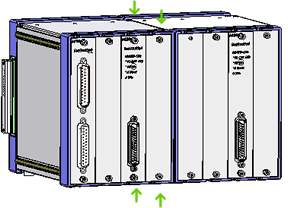
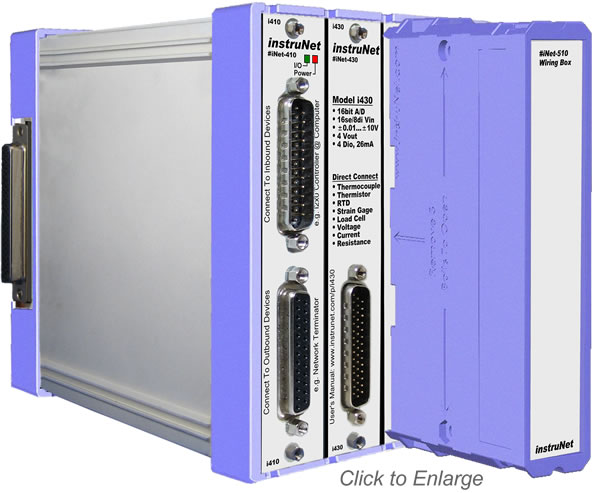
11. Attach the external instruNet Network Devices in a daisy chain configuration, as illustrated below. 

Figure 1.5, instruNet Network

11b. For information on more complex Cabling scenarios, see Cabling Together instruNet Hardware.

12.    Tighten all DB-25 thumbscrews until lightly snug.

13.    Install an instruNet Terminator on the end of each network.

14.    It is recommended that the user attach the instruNet instrumentation ground (i.e. instruNet box and instruNet GND screw terminals) directly to Earth ground with a 16gauge wire from the left-most GND screw on the instruNet box, to the closest Earth ground (e.g. screw next to power socket).  This will reduce the chance of RFI coupling into the instruNet ground, and is required if the user wants to meet EC and FCC RFI guidelines.

15.    If working with an iNet-230 PC-Card, attach an external power supply (e.g. iNet-312.8) to the PC-Card 5pin DIN connector.  This supplies power to the external network devices (i.e. not the PC-Card itself).

16.    Turn the computer power ON and then Turn ON all powered devices attached to the instruNet network.

Verify That Your System is Working Properly

Verify that your hardware and software is working in 5 easy steps:

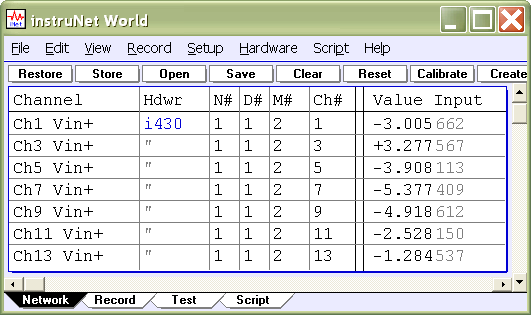
1.   Run the "instruNet World" application program ("instruNet World Mac" on Macintosh, and "instruNet World Win32.exe" on a Microsoft Windows computer), in the instruNet directory.  A window will open, similar to what is pictured to the right.  If necessary, you might need to click on the Network tab at the bottom of the window to select the Network page.  If this window opens, then you know your instruNet driver file is installed and working correctly.  The list of channels shown in the window's table will vary, depending on what instruNet hardware is connected.  If an error alert appears, please see Error Alert On Launch; if the software freezes or crashes, please see Crash On Launch

2.   Press the Test tab at the bottom of the window to select the Test page, and then press the Search button at the top of the window.  A report will print that lists the controllers and network devices that are currently installed on your computer.  For example, the report below shows one Controller, and one Model 100 Network Device.

instruNet HARDWARE SEARCH RESULTS:  Date & Time: 10/2/1997, 12:12:41
Net Dev Mod  Device
----------------------------------------
 0   0   0    Mac OS Ver 7.5.3
 0   0   1      instruNet Driver Version 1.24
 0   0   1      instruNet World+ license Not Installed (costs extra)
 1   0   1         PCI Controller #iNet-200 (slot #13, 4000KBD, 6us, 94%)
 1   1   1           Device #iNet-100 (SN37532, Cal 9/28/97, Rev4, 30.99C, ...

If this does not match what you believe is installed on your network, then check your hardware installation (cables, power, etc).  Also, it is possible that the instruNet Driver is older than the devices on your network, which means you need the latest driver that recognizes these new devices.  The instruNet Driver is always listed as the 1st installed item. 

3.   Press the Test button at the top of the window to test your controllers and devices, and to report any problems if found.  The duration of the test can vary from 1 to 120 seconds depending on the size of the networks, and the speed of the computer.  If no problems are found, a report similar to the one below is printed in the window:

INSTRUNET QUICK TEST RESULTS:
Date & Time: 10/12/1995, 12:53:23
We ran 0.510029 million tests and did NOT hit 1 error.

4.   Press the Big Test button to run an exhaustive test.  An alert similar to the one on the right will appear to communicate that the computer will test all instruNet hardware until there is an error, or until you press the mouse button down.  It will test your network(s) all night long if you let it.  Press OK to begin the Big Test.  Wait 20 seconds or longer.  If an error occurs while testing, an alert will appear and the error message will also be printed in the window. If this occurs, please see Troubleshooting.  If no error alerts appear, and you want to stop the test, press the mouse button down and hold it down until the an alert appears announcing the end of the test.  Click OK to exit this alert.  The test results are printed in the window, in a format similar to what is shown below: 

We ran 2.170272 million tests and did NOT hit 1 error.

Big Test is identical to Test, except it runs for a longer period of time and is useful at finding intermittent problems that only occur once every minute, hour, or day.  Big Test can be run overnight for extensive testing of all hardware.

5.   You are done!  Your instruNet hardware and software is installed correctly and running beautifully. Please proceed to the Tutorial to learn more.

instruNet World+ (PLUS) Software License Installation

Overview
instruNet World (not +) software is available free of charge and included on the instruNet CD with each i2x0 controller card (and at "www.instrunet.com/d").  The "PLUS" version (referred to as "instruNet World+" or "iW+"), with more features, is available at an additional charge under the following product numbers:

  • #iNet-350-SerialNumberOfController, instruNet World+ for pre-existing i2x0 controller card.  One must specify the serial number of that controller on their Purchase Order, since license codes are keyed to controller serial numbers.
  • #iNet-200P, instruNet PCI card and instruNet World+
  • #iNet-230P, instruNet PCMCIA card and instruNet World+

Since the PLUS software is included inside the NOT plus software, one only needs to register the iW+ license code, described below, to enable the PLUS software after installing the NOT plus software (i.e. after running the instruNet CD).

Licenses are issued for each individual controller cards and are keyed to the controller's serial number.  Subsequently, the PLUS features are only enabled in the following cases:

  • A valid PLUS license code is installed, yet no controller card is installed.
  • A valid PLUS license code is installed, along with it's corresponding controller card.
  • instruNet software is running in Demo mode and simulating a controller card.

iW+ Installation
To install an iW+ license on your computer and enable its powerful features on Windows 98/Me/Nt/2k/Xp/Vs/> computers (iW+ is not supported on Macintosh), please click here.


CONTACT US | | PRINT THIS PAGE | NEW WINDOW | COPYRIGHT gwi '05